Approve businesses, manage plans, edit the website and set up Razorpay and SMTP.
Step-by-step
- Platform dashboard
The Super Admin runs the whole platform. The dashboard shows businesses, pending approvals, expired plans, revenue, new registrations and plan requests.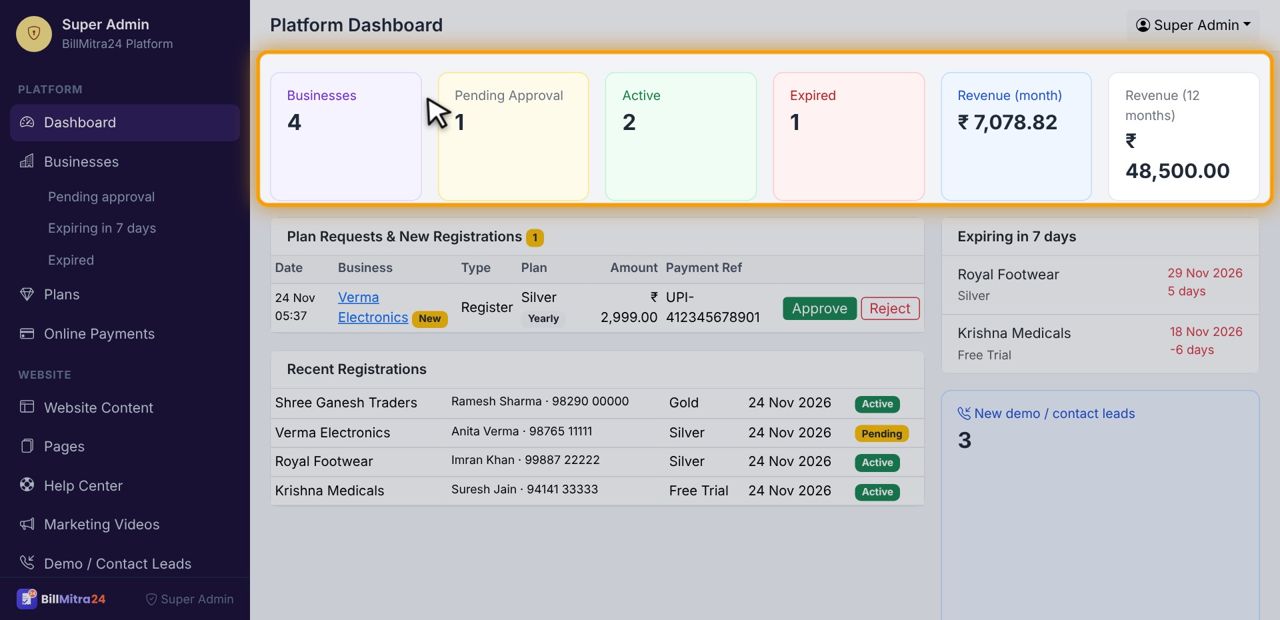
- Manage a business
Approve or reject a new registration in one click. Open a business to activate or suspend it, update its plan and expiry, extend days, reset a user's password or log in as the business for support.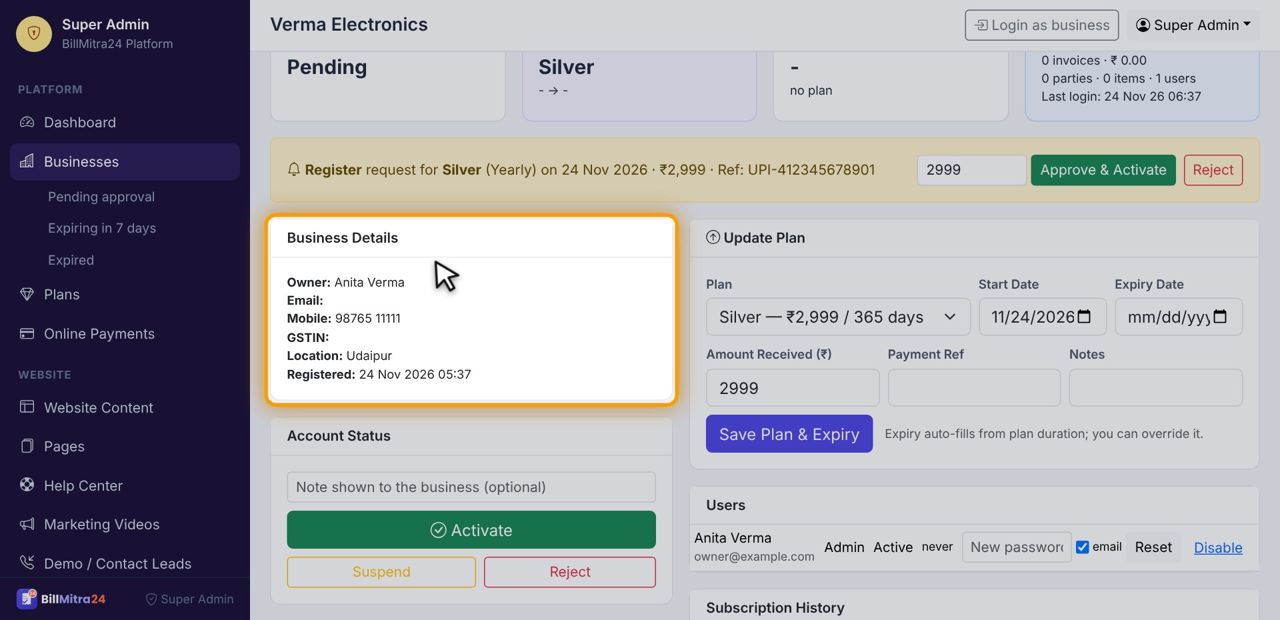
- Plans
In Plans set prices for monthly and yearly billing, limits for users, invoices and items, and which features each plan includes.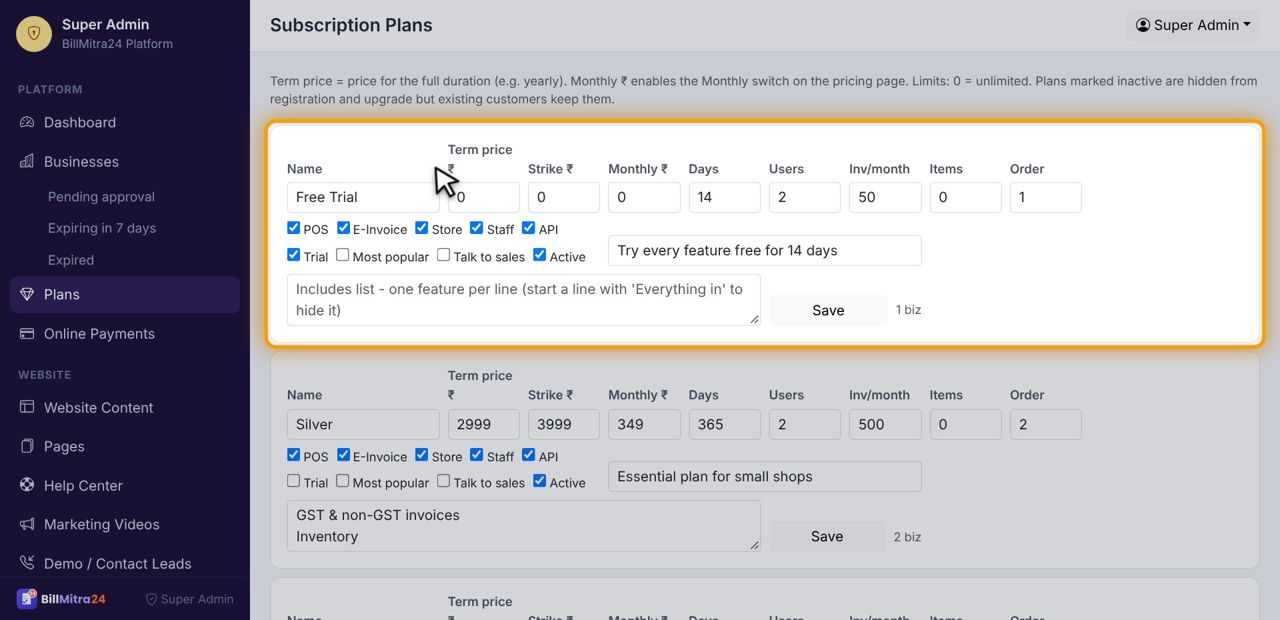
- Website content
Website Content lets you edit the public website without code: logo, phone, WhatsApp, address, every home page section, FAQs, pages and SEO. Changes are live immediately.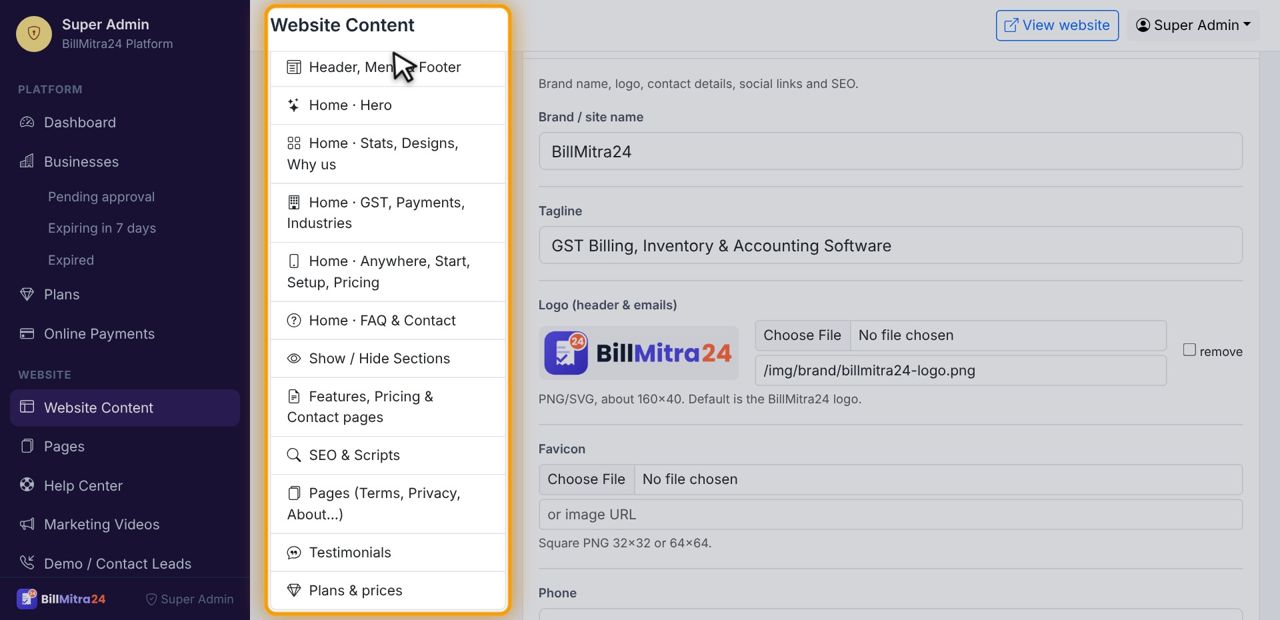
- Razorpay
In Payment Gateway enter your Razorpay key id and secret and the webhook secret, then test the connection. Businesses can now pay online and plans activate automatically.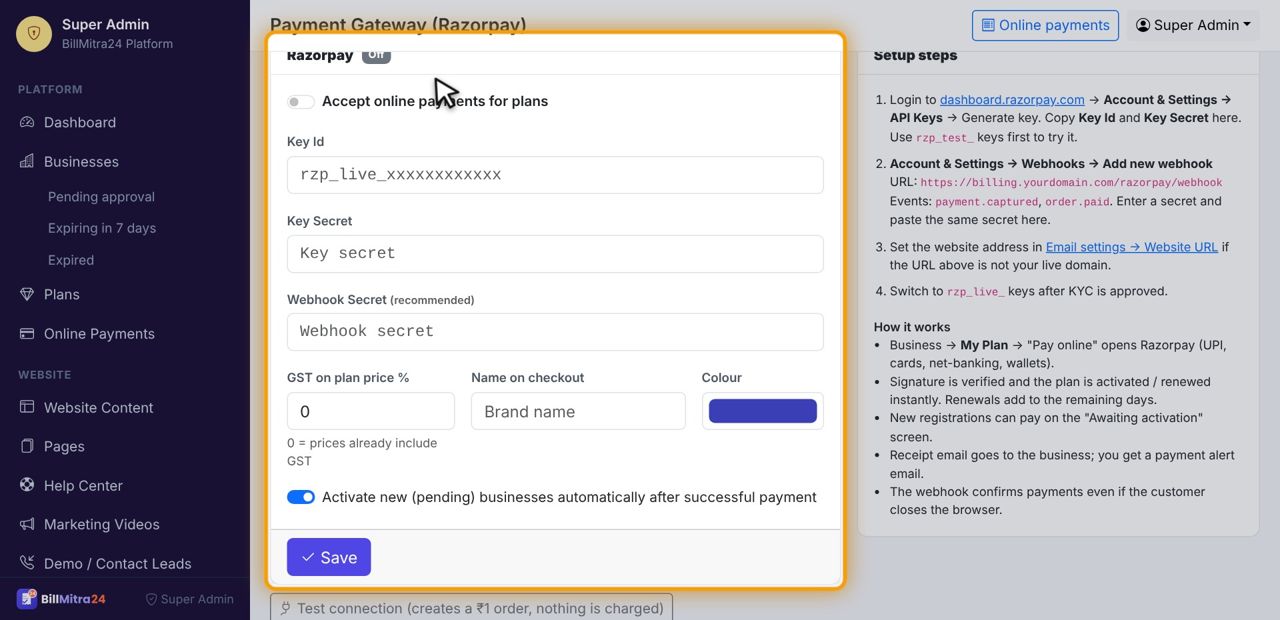
- SMTP & email templates
In Email and SMTP enter your mail server details and send a test email. Email Templates let you edit every automatic email in your own words, with a live preview.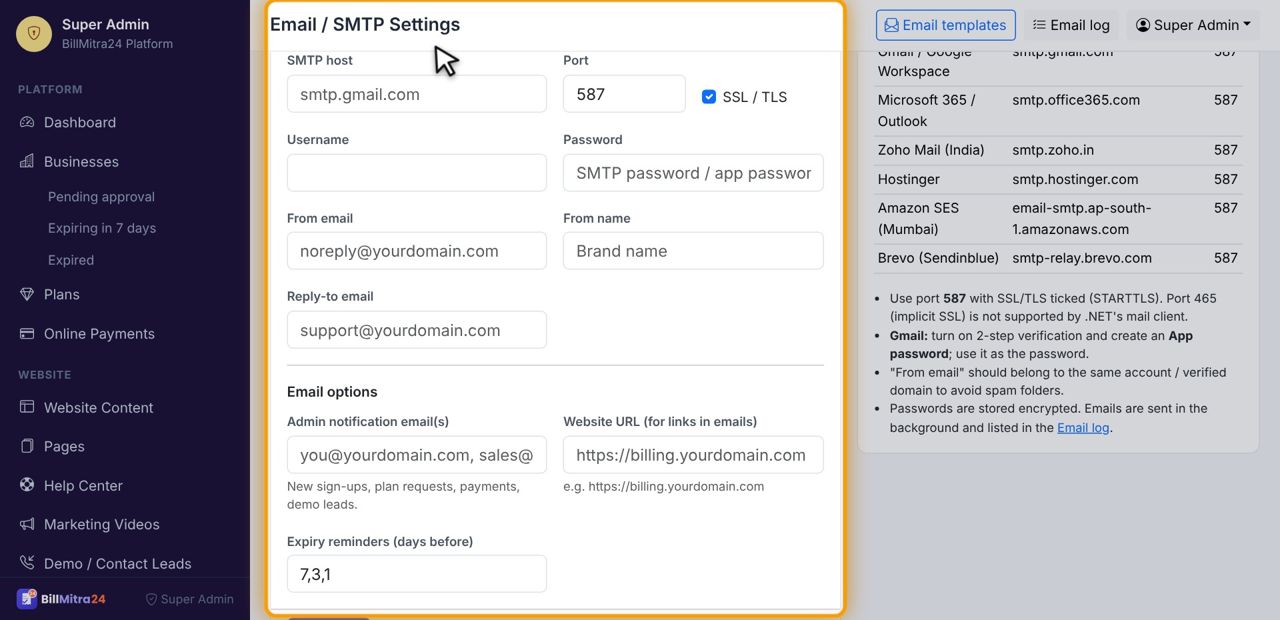
Tips
- Back up the App_Data/keys folder: it encrypts saved Razorpay and SMTP secrets.
- Use rzp_test_ keys first, then switch to rzp_live_.